


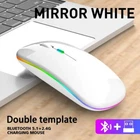
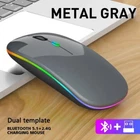
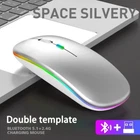
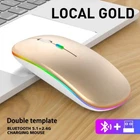
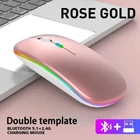
2.4GHz USB Rechargeable RGB Wireless Mouse for PC and Laptop
$ 5.54
Description
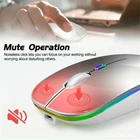
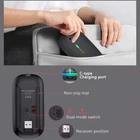
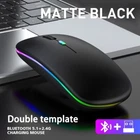
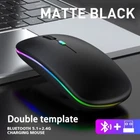
Specifications Hign-concerned Chemical None Power Type Battery Hand Orientation Right Package Yes DPI 1600 Type Bluetooth Wireless Brand Name LYBYU Origin Mainland China Number of Buttons 4 Description Report Item / Suspicious Activity Features: 1. New Upgraded: Unique charging technology,built-in lithium battery 2. Silent Design: The left and right click are both silence, no sound when you click 3. 3 kinds DPI :adjustable provides precise positioning Specification: Item Name:2.4G Wireless Mouse& Bluetooth-compatible 5.1 mouse Buttons: 4 buttons The Max DPI: 1600 DPI Ajustable DPI Switch: 800 /1200 / 1600DPI WiFi Range: 10M Battery: Rechargeable Itnerface type:Type C Charging Cable Length: About 19-20cm Switch Life: 10 Million Times Size: 112 *58 *25mm Support System: Windows / Mac/ Android / iPadOS Package: 1 x Wireless Mouse 1 x USB Receiver 1 x Charging Cable Wireless Bluetooth Mouse Rechargeable Dual Mode (Bluetooth 5.2+Bluetooth 3.0+Wireless USB2.4G) With LED Color Atmosphere Lamp.(Note: Mouse Wireless LED Colorful Breathing Light It Cannot Be Set to a Specific Color) One Cordless Mouse, Multiple Devices Just Press The Mode Toggle Button On The Bottom of The Mouse and You Can Control The One You Want. (Note: Rechargeable Mouse Can't Use Bluetooth Mode and 2.4G Mode At the Same Time) LED Wireless Mouse Broad Compatible systems are: Windows、Windows XP、Vista、7、8、10 /Windows Vista/Windows ME,Android 5.0 or Higher,Mac OS X10.10 or Higher,Apple/iPad/iPhone iOS 13 and Above,Chrome OS,UNIX,Linux Etc. Bluetooth Mode is Available for All Bluetooth-enabled Laptops (MacBook Pro、MacBook Air、MacBook、Mac、iMac、Android)、Tablet (iPad Pro、iPad Air、iPad mini、iPad10th、iPad9th、iPhone、iMac、Android)、Desktops、All-in-one Computer Etc. The 2.4GHz USB Receiver Mode is Suitable for with USB Ports All Laptops、Desktops、All-in-ones、Dell、HP、Apple、Mac、iMac Etc,Plug and Play. How to use Bluetooth mouse mode:First, slide the mouse switch to Bluetooth mode (down) > open laptop system preferences settings > turn on Bluetooth function > when laptop Bluetooth is searching for nearby Bluetooth devices > The Green light flashes > Bluetooth search there appears "BT5.2 Mouse" > click to connect "BT5.2 mouse or BT3.0 mouse (BT3.0 for old laptop)" > connection is successful How to use mouse 2.4G USB receiver mode: First, switch the mouse switch to 2.4G mode (up) > Then remove the USB receiver from the slot on the bottom of the mouse > Plug the USB receiver into the USB port of your laptop,plug and play. (Works with all USB ports Laptop and desktop ports) How to Use the Bluetooth Mouse on the iPad OS13 and Above iPad pro 11/12.9 inch、iPad air 10.9 inch、 iPad mini 8.3 inch 、iPad 10.9 inch、iPad 10th/9th: First, Open iPad Settings, Find Accessibility, Turn on Touch Controls, Find Assistive Touch Controls, Turn on Assistive Touch Controls, then pull down to find the device, turn on the Bluetooth device, then turn on the mouse switch,your iPad will search for a "BT5.2 mouse" and click "Connect".(if you can't find the Bluetooth mouse device, please restart the mouse or iPad Bluetooth function, or restart the iPad) How do I charge a wireless mouse:The mouse pointer moves slowly or responds slowly, or suddenly disconnects continuously during use, this is the reminder that you need to charge the Bluetooth mouse for about 2 hours. Please use an adapter with an output of no more than 5v/1A for charging, or a power bank, or a USB port on your laptop. (Charging is prohibited on chargers with output 10V/1.5A or more) Package Included: 1 x Dual Mode Computer Mice.(Size About 4.5 x 2.4 x 1.2 inch).1 x 2.4GHz USB Receiver.(The USB Receiver is Stored Inside The Back of The Mouse).1 x USB Charging Cable.(Do not use a high power charger or a fast charger to charge).


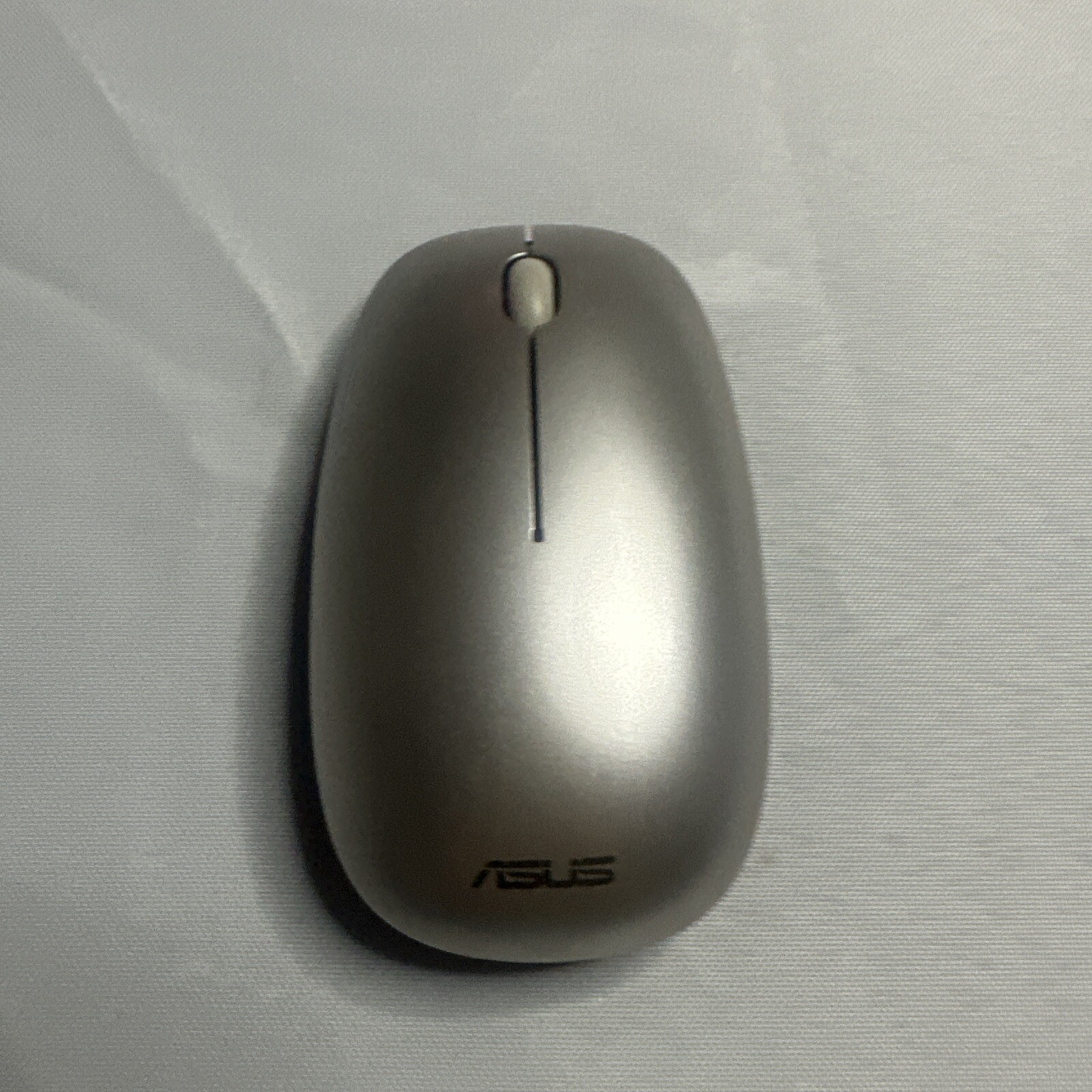

Took forever but I got it Thanks